
Products

 Products Overview
Newsela products are purpose-built to unlock student motivation, inspire teachers, and drive long-lasting learning outcomes.






Resources
About
Products OverviewNewsela products are purpose-built to unlock student motivation, inspire teachers, and drive long-lasting learning outcomes.

Your district may be limiting screen time, restricting student-facing AI, or still deciding what its technology guidance should look like. Meanwhile, teachers need to plan their next lessons. When is a screen necessary? When does print make more sense? And how do scaffolding and differentiation fit in?
You can give teachers a clear way to make those choices without turning every lesson into a policy check. Here’s a look at emerging district approaches and a four-step framework for choosing instructional materials that meet student needs and your district’s requirements.
Some of the largest school districts in the U.S., including Los Angeles Unified School District (LAUSD) and New York City Public Schools (NYCPS), have introduced new policies around student screen time and AI use. While the policies vary from district to district, there are some common trends emerging:
During an October 2026 webinar, we asked district leaders how their schools were approaching screen time and AI policies. Most respondents (61%) said their district had no policy on student screen time. Another 34% reported having guidance on screen use but no explicit limits.

Taken during a webinar in October 2026; n = 36 district leaders. Responses reflect webinar participants, not a nationally representative survey.
Taken during a webinar in October 2026; n = 36 district leaders. Responses reflect webinar participants, not a nationally representative survey.
Responses about AI policies were more varied. Slightly more than half (53%) said their district allowed student-facing generative AI for specific use cases, such as accessibility needs. Another 26% reported having no AI policy.
These findings reflect the views of 36 district leader webinar participants, not a national survey. But they still highlight a challenge for district leaders: Teachers may have very different expectations around technology use depending on their district’s policies and how clearly those policies are communicated.
Screen time and AI policies should support student learning, not create additional barriers to it. That’s why many districts include exceptions for students with individualized education programs (IEPs), other students with disabilities, and multilingual learners/ELLs who rely on digital tools and accommodations to access instruction.
Even when a district limits individual screen time or restricts AI use, these students still have access to necessary digital supports so they can participate in learning alongside their peers.
As you develop or revise your district’s policy, make sure teachers understand which accommodations remain available and how to provide them without conflicting with district guidelines.
New screen time and AI policies may change how teachers use technology in the classroom, but they don’t change what students need to learn.
As a district leader, you can help teachers make these decisions consistently. This four-step framework moves from identifying a learning objective to choosing appropriate materials, then checking policy alignment and ensuring that every student can meaningfully access and participate in the lesson.
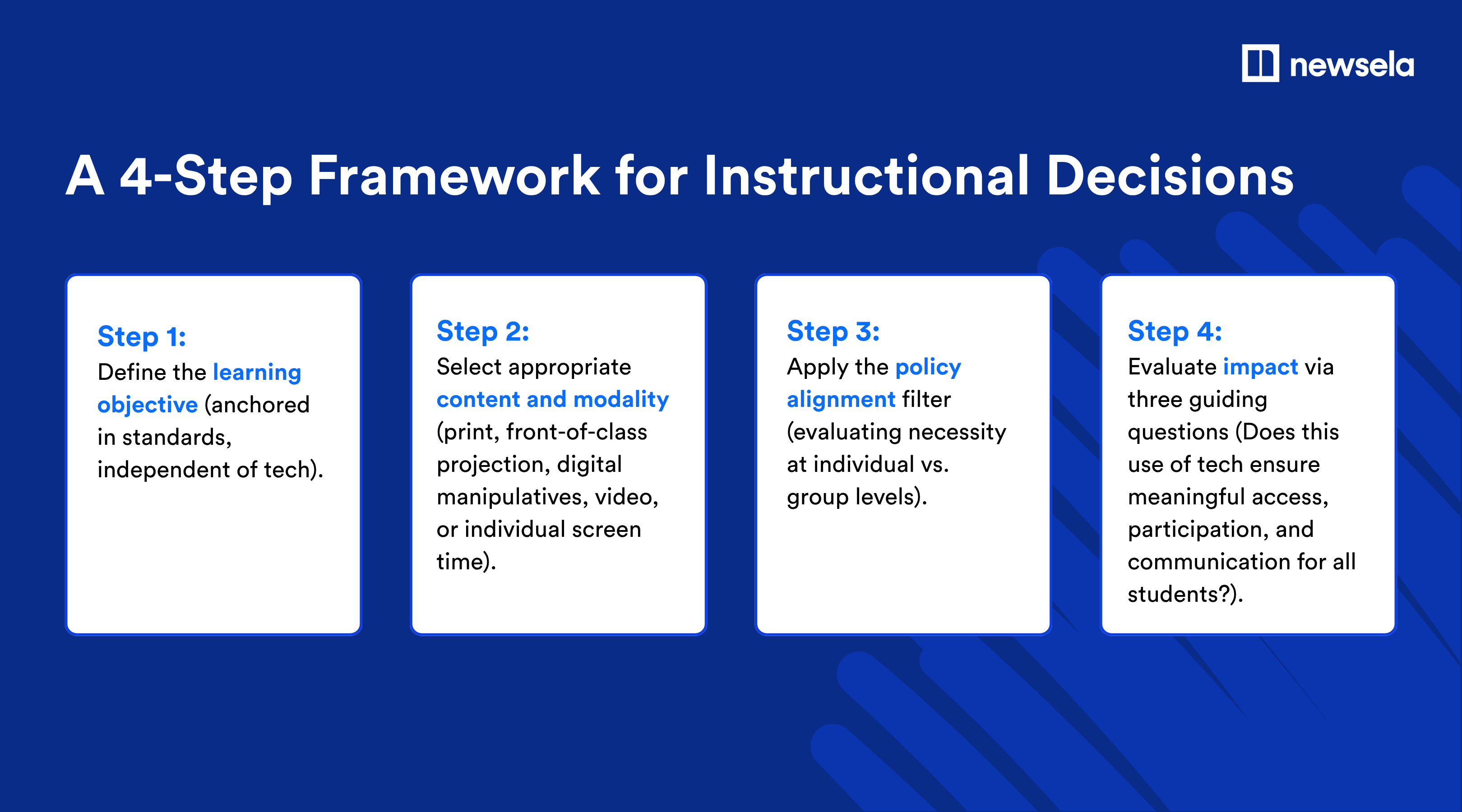
Before teachers choose technology or instructional materials, they need to ask: What do they want students to learn in this activity?
For example, an elementary ELA teacher might want students to identify a text's central idea and explain how key details support it. A middle school science teacher might want students to identify patterns in data and use evidence to explain a scientific phenomenon.
In both cases, the learning objective stays the same whether students use print materials, digital resources, or a combination of both. Encouraging teachers to start with these goals helps them make instructional decisions based on standards and student needs rather than which technology is permitted.
Once teachers know what they want students to learn, they can choose instructional materials that support that objective. As they explore available resources, they may find that the content itself influences how they want students to interact with it.
For example, that elementary ELA teacher might choose a video for students to explore individually or a printed article they can mark up by hand. The middle school science teacher may decide that an interactive simulation gives students more opportunities to explore a scientific phenomenon than watching a video as a class.
In both examples, the instructional format is part of the learning experience. Students may need to interact independently with materials before coming together to discuss their observations, share evidence, or explain what they’ve learned.
Encourage your teachers to consider not only which resources support their learning objectives, but also how students will use them during the lesson.
Once teachers have chosen their content and instructional format, they need to check whether the planned activity fits your district’s screen time and AI policies. The distinction between whole-class technology use matters here. A resource might be appropriate for classroom projection but restricted when students access it independently on their devices.
Policy alignment often provides for some nuance. Maybe your district prioritizes print materials, but teachers may still need to provide digital accommodations, such as translations or read-aloud functionality, for students with disabilities and multilingual learners. Your guidance should help teachers understand when screen-free instruction makes sense and when digital access is necessary for students to participate fully.
The final step is to consider how the lesson will work for students in the classroom. Even when an instructional format aligns with district policy, teachers need to make sure students can access the materials, participate in the learning experience, and understand expectations for technology use.
As a district leader, you can help teachers apply these policies with a practical, student-centered approach. Encourage open conversations with your teachers about instructional technology decisions, and support them in having those same conversations with their students.
Before finalizing a lesson, teachers can use three guiding questions to evaluate their plans:
Even a clearly written screen time or AI policy can leave teachers wondering what it actually means for their classrooms. Does watching a video together count toward screen time limits? Can students still use their digital translation and read-aloud tools? Are teacher-facing AI tools part of the same restrictions as student-facing tools? Teachers can confidently adjust instruction when they have clear answers to these types of questions.
You can help translate policy language into practical classroom guidance. Provide examples of permitted and restricted technology use, clarify how accessibility accommodations fit in, and identify the right people to contact with questions. Involving curriculum, technology, and student support teams can also help ensure teachers receive consistent guidance across departments.
And communication shouldn’t stop once you announce the policy. Give teachers opportunities to share how the changes affect their lessons or to identify situations the original policy may not cover. Encourage teachers to have transparent conversations with students about AI use and screen-time approaches. Everyone’s feedback can help you refine implementation guidance and identify where teachers need additional professional learning or instructional resources.
Most importantly, remind teachers that they don’t have to abandon effective instructional strategies because of a policy change. Help them explore different ways to meet their learning objectives while following district expectations and addressing students’ individual needs.
New screen time and AI policies don’t have to mean giving up the instructional resources teachers already use. Newsela partners with districts to ensure the platform fits within each district’s unique policies on screen time and/or AI. All AI features can be disabled at any time in Newsela.
Backed by ESSA Tier II evidence and with a library of more than 18,000 multimodal texts, Newsela gives teachers options for delivering instruction through printed articles, class discussions, and digital activities. This flexibility allows them to choose the format that best supports their learning objectives while following district guidance.
Newsela solutions let teachers design on- or off-screen learning experiences that match students’ needs and learning objectives. Screen-free instruction isn’t a last-minute addition to Newsela; we were built from the ground up to work screen-free, hybrid, or digitally. Teachers can use content with a range of instructional strategies and modalities—like supporting class discussions with print articles, graphic organizers, front-of-class videos, and projects.
There is no student-facing generative AI in our subject-area products (ELA, Social Studies, and STEM). In Newsela Writing, a separately paid add-on, AI offers vetted, rubric-aligned feedback while students write—and like all Newsela products, administrators can disable these AI features if they choose to.
A team of instructional experts writes Newsela’s content, which is rooted in authenticity and relevance. Teacher-facing AI tools provide instructional supports like Graphic Organizers, Writing Prompts, and Checks for Understanding—all of which admins can disable for teachers and/or students.
Teachers need a flexible toolkit to provide high-quality, tailored support for their learners. In-product supports like guided highlighting and text translation use AI/LLM technology and, if chosen, can be turned off.
Screen time and AI policies may continue to evolve, but the goal of classroom instruction stays the same: Helping every student learn. With clear guidance and the flexibility to choose appropriate instructional materials, teachers can make decisions that meet district expectations without compromising students’ learning experiences.
As you implement or revise your district's policies, keep the conversation focused on what students need and how teachers can best support them. Whether that means using printed articles, incorporating digital activities, or providing accessibility accommodations, the right instructional approach should always start with the learning objective.
Newsela gives your teachers flexible content and instructional supports they can adapt to their students’ needs and your district’s policies, so they can spend less time navigating restrictions and more time focusing on learning.


NEW Schoolytics by EveryDay Labs brings together student data, MTSS management, and tools to improve attendance.
Join the 30-minute live demo on November 12: 2:30pm ET/11:30am PT
NEW Schoolytics by EveryDay Labs brings together student data, MTSS management, and tools to improve attendance.
Join the 30-minute live demo on November 12: 2:30pm ET/11:30am PT
NEW Schoolytics by EveryDay Labs brings together student data, MTSS management, and tools to improve attendance.
Join the 30-minute live demo on November 12: 2:30pm ET/11:30am PT
NEW Schoolytics by EveryDay Labs brings together student data, MTSS management, and tools to improve attendance.
Join the 30-minute live demo on November 12: 2:30pm ET/11:30am PT